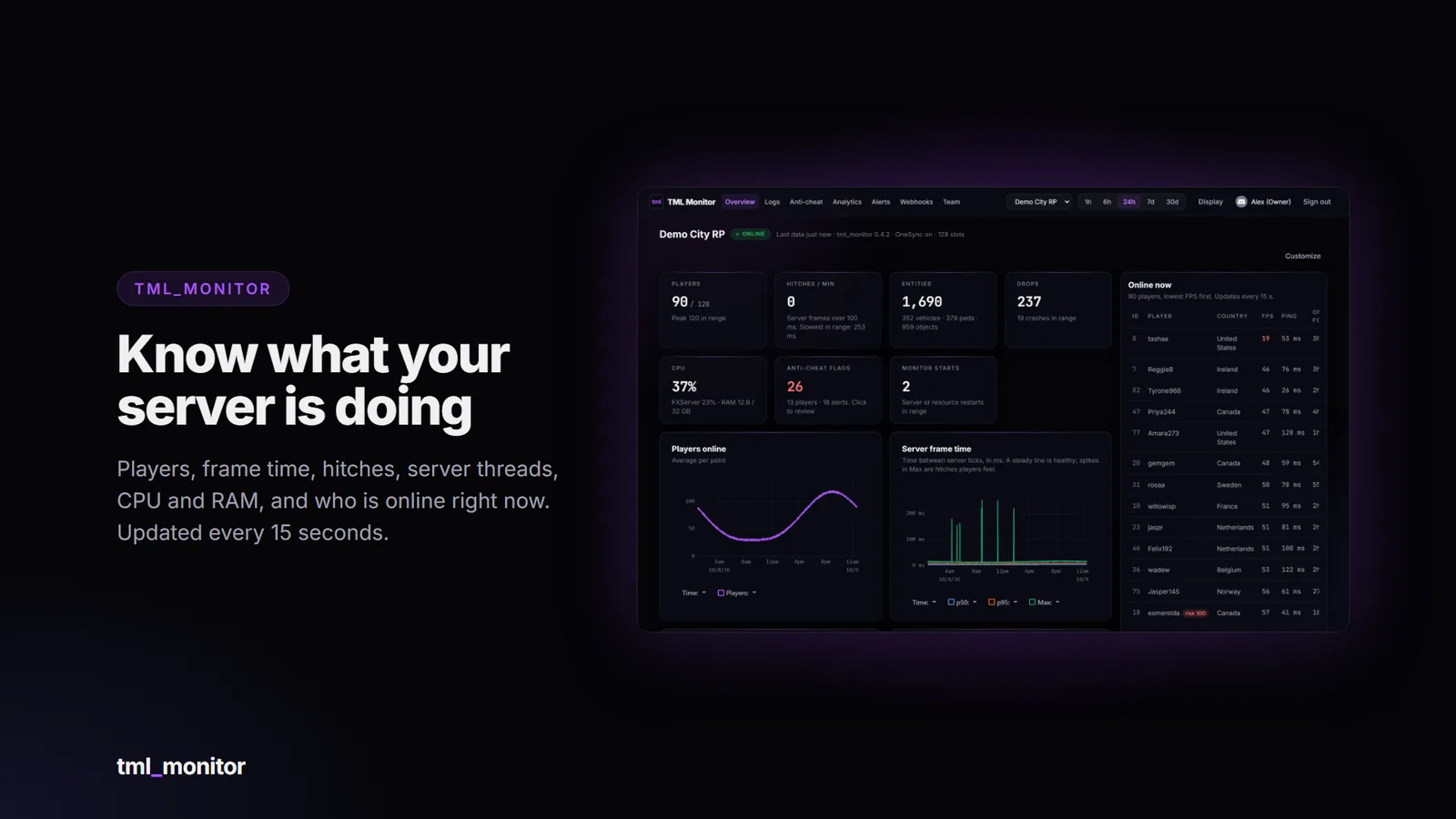
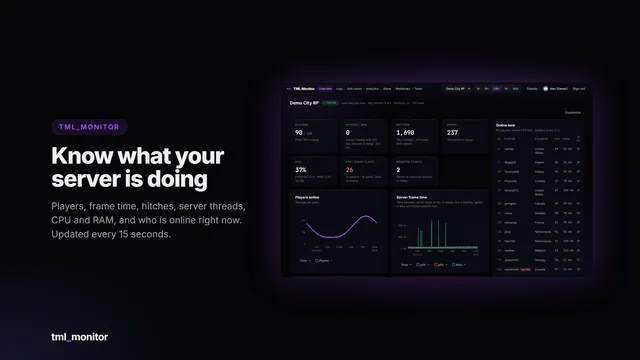
See what your server is doing right now and over the last 30 days, from a web dashboard you and your staff open from any browser or phone. A lightweight resource on your server measures performance, collects logs and watches for cheating; the TML Monitor dashboard shows it all in one place, searchable and live. There’s nothing to host and no database to set up: we run the dashboard for you, as a monthly subscription you can cancel any time.
Features
- Live performance: players online, server frame time and hitches, how busy FXServer’s main, network and sync threads are, entity counts, players' FPS and ping, and the machine’s CPU and RAM next to FXServer’s own. Charts for the last hour up to 30 days, updated every 15 seconds.
- Find what’s lagging your server: press Profile now (or let it run by itself when the server hitches badly) and FXServer’s own profiler shows which resources took the time, and which made the longest single freeze. The worst freezes are listed with who was on and what changed just before, and every script error in your console is collected and counted.
- Crash reports: when the server goes down without a clean stop, TML Monitor keeps the minutes before it: players, freezes, memory and CPU, the last logs, script errors, the resources changed just before and who was on, and tells your Discord when it’s back.
- Alerts to Discord: paste a Discord webhook and TML Monitor posts to your staff channel when something needs looking at: the server going offline, hitching, a busy main thread, a sudden drop in players, anti-cheat alerts (with the player’s screenshot attached), a watched player joining, one player suddenly gaining a lot of money or of one item, the same item going to several of one player’s characters, a crash, and saved searches (on every match, or only after so many within a few minutes). Set the limits for each, hear when it’s back to normal, and never get spammed by a problem that comes and goes.
- Analytics and uptime: the last week or month at a glance against the one before: peak and average players, new and returning players, sessions, uptime, restarts, hitches and flags. An uptime bar shows every outage and restart, and whether a restart was clean or a crash. A heatmap shows when your players are on, so you know when to restart. Every resource you add, remove, stop or update is marked on the same timeline, so “the hitches started after that update” is plain to see. Turn on the weekly report and the summary lands in Discord every Monday.
- Player trends: new and returning players each day, whether new players come back the weeks after, how long sessions last, your regulars and where new players come from.
- Items and dupes: the items coming into your game each day, the most common, who got the most of what, and the biggest at once. A day an item comes in far more than usual is marked, which is what a duplication bug looks like, and the same item going to two or more of one player’s characters is flagged, which is how items get moved to an alt. Leave everyday items like water out with one list.
- Economy: money coming into and leaving your economy each day, by account, who gained and spent most, and the biggest single payments. A day with far more money than usual is marked: that’s what a money exploit looks like.
- Staff activity: everyone who used an admin menu, what they did (punishments, teleports, items and vehicles spawned, revives), the actions they use most and how long they were on. See at a glance who is doing the work, and who is handing out cars.
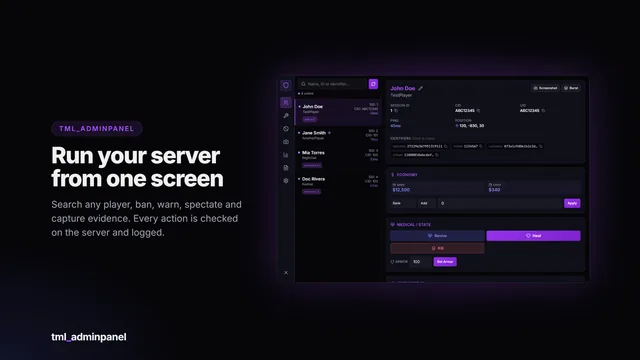
- Players tab: find anyone who’s played, by name (even an old one), any of their characters' names or IDs (multicharacter servers included), Discord, Steam or licence. Filter to who’s online, new this week, flagged or on your watchlist, or search all your servers at once. A player’s page shows the same person on your other servers, with the notes your team left there. Download any list as CSV.
- Notes and a watchlist: leave notes on a player for your whole team (“warned for RDM, second time”), and watch a player to hear in Discord the moment they join, with why they’re watched and the latest note.
- Player pages: click any name for everything about that player in one place: the team’s notes, identifiers (copy them straight into a ban), every character they’ve played, sessions and play time, risk score, flags with their screenshots, other accounts sharing an identifier, money in and out, what they’ve been doing and their latest logs.
- Who’s online: every player with their server ID, country, FPS, ping and time online, lowest FPS first so you can spot the players who need help.
- Every log in one place: connects and disconnects with the reason and full identifier list, money changes with reason and balance, items moved, given, bought, crafted or added by scripts (with weapon serials), vehicles, deaths with killer, weapon and distance, job changes, character loads, txAdmin and admin menu actions, and chat if you want it.
- Search that finds things: search names, items, plates, serials, licences, Discord IDs or reasons; filter by category, event or level; drag across the timeline to zoom into a moment; save the searches your team uses most and have new matches sent to Discord; export logs, players and every Analytics table to CSV.
- Anti-cheat signals, checked on the server: moving too fast, teleporting, super jump, god mode, health or armour over the maximum, and spawning too many vehicles, peds or props. Each flag shows the measured value, the limit and where it happened. It only reports: nothing is blocked or banned, so you decide what to do.
- Catches what cheat menus do: weapon damage over the limit, hits with a weapon the shooter isn’t holding, too many hits a second, hits from impossibly far away, weapons that aren’t in the player’s inventory (ox_inventory) or that you’ve banned, explosion spam and hidden or boosted explosions, giving or taking other players' weapons, projectiles blamed on someone else, bursts of fires, particle effects and other game events menus abuse, models and explosion types you’ve banned, a player’s client scripts being switched off, and misuse of events from your own scripts that you choose to watch.
- Reported by the player’s game: developer tools opened on the game’s web pages, resources running in the game that your server never sent (how executors show up), infinite ammo and invisibility, plus free camera and night or thermal vision if you switch them on. Marked as reported by the game, since a cheat can hide them.
- Screenshots and menu detection: alert flags come with a screenshot of the player’s screen, shown right in the flag. TML Monitor takes it itself (nothing else to install) and the player’s game uploads it, so it costs your server nothing. The text on it is read, and a known cheat menu’s name on screen is flagged on its own.
- Second accounts: each player’s game gets a device ID and a browser fingerprint is taken, so two accounts on the same PC are linked even with different Discord and Steam accounts, along with accounts that share a Discord, Steam or FiveM account, or play the same character from two licences. Each link shows how strong it is.
- Players to look at: every flagged player gets a risk score from the different kinds of flags they’ve collected, shown on the Anti-cheat page and next to their name in Who’s online, so several signals from one player stand out from a single odd one.
- Built to avoid false flags: grace periods for joining, character select, spawning, revives and jail, and when a script fades the screen to move a player; staff aren’t flagged for the god mode or noclip they switched on in txAdmin, qbx_adminmenu or tml_adminpanel; admins are exempt by default. Allow a script’s teleport (a door into an interior, an elevator) or a whole area (a race track, an event arena) in one click, and exempt players such as event hosts from the dashboard.
- Webhook drop-ins: many scripts post their logs to a Discord webhook. Swap that URL for a TML Monitor one and those logs land next to everything else, searchable and linked to the player, with an optional copy still sent to Discord.
- Your team: everyone signs in with Discord. Add staff as owner, admin or viewer, so each person sees and changes only what they should, and see who on the team changed what on the dashboard.
- Public status page: turn on a page anyone can open with your server’s status, players and 30 days of uptime, plus a badge for your website. Paste the link in Discord and it previews with the live status.
- API keys: read-only keys for your own Discord bots and tools: flags, logs, who’s online and risk scores.
- Your layout: hide, move and resize every tile and chart, and pick your clock and display options. Saved to your Discord account, so it follows you to any device.
- Light on your server: about 0.006 ms of server time per frame on a quiet server and about 0.2 ms with 500 players (a simulated 500, measured by the resource’s own self-check). No database, no visible UI in the game, and data waits safely on the server if the connection drops, then sends when it’s back.
- Yours to adapt: English and Spanish included, every option in an open config file, and the framework, inventory, banking and admin menu adapters are open files you can edit. Other scripts can add their own log lines with one export.
Privacy
Player IP addresses are never stored or sent in full. For the country column, only the network part of the address is sent and turned into a country on our side; just the country is kept. To link second accounts, each player’s game keeps a random device ID, and the game’s built-in browser is fingerprinted (graphics card, screen size, time zone, language and how it draws a test image). Only hashes of these are sent, unique to your server, so they can’t be matched across servers; the raw details never leave it. Screenshots of a player’s screen are taken only when they get an alert-level anti-cheat flag, and are kept with that flag for 30 days. Each of these can be switched off in the config. Alerts and weekly reports go only to the Discord webhook you set. Logs and stats are kept for 30 days, then deleted.
Requirements
- A FiveM server with OneSync (needed for the anti-cheat checks and entity counts)
- Outbound HTTPS from your server to the TML Monitor service (any normal host allows this)
- A Discord account to sign in to your dashboard
- Optional: a supported framework for character names, jobs and money logs, or standalone mode
Compatibility
The resource talks to your server through an open bridge layer, so it isn’t tied to one setup.
| Category | Included adapters |
|---|
| Framework | Qbox, QBCore, ESX, standalone, custom |
| Inventory | ox_inventory, standalone, custom (any inventory can also log through the export) |
| Banking | Renewed-Banking, custom |
| Admin menus | txAdmin, qbx_adminmenu, tml_adminpanel, custom |
The bridge files are not encrypted: if your setup is unusual, or an included adapter needs a tweak, you can edit the adapter yourself. Blank custom adapters are included for anything else.
Getting started
- Subscribe. Your Tebex receipt has a transaction ID (it starts with
tbx-). - Sign in at https://monitor.tml-services.xyz with Discord and enter that transaction ID and the email you paid with. The server is on your account straight away.
- Open Team and press Make a key.
- Add
tml_monitor to your resources, paste the key line into server.cfg above ensure tml_monitor (with the three add_ace resource.tml_monitor lines from the README, for command.profiler, command.record and command.saveJSON, if you want performance profiles), and restart. Your dashboard shows the server online within a minute.
Documentation: https://store.thatmaddladd.xyz/docs/tml-monitor/overview/ (install guide and API; every config option is explained in the config file). Update announcements are posted in the Discord.
Important: Cfx.re Asset Escrow
The tml_monitor resource is distributed through the Cfx.re Asset Escrow system. Please read before purchasing.
- The main server and client code is encrypted by Cfx.re’s escrow. It can’t be viewed or edited, and it can only run on a server whose license key belongs to the Cfx.re account that purchased it.
- These files are left open so you can customise them: the config file, language files, all bridge adapters (framework, inventory, banking and admin menus), and the documentation.
- You need a Cfx.re (Keymaster) account and a server using that account’s license key.
- One subscription covers one server, and its dashboard.
- Do not resell, share, leak or redistribute the files or the encrypted assets. Doing so violates the license and Cfx.re’s terms.
Purchase terms
- Monthly subscription. It renews automatically each month until you cancel. Cancel any time through Tebex (the link is in your receipt email): your dashboard keeps running until the end of the month you’ve paid for.
- No refunds, including for a part-used month. Check the requirements and compatibility above, or ask in the Discord, before subscribing. Price drops and later sales are not refunded.
- When a subscription ends (cancelled, or a renewal payment fails), the server’s dashboard pauses: it stops collecting new data, and older logs and stats age out after 30 days as usual. Subscribe again and it carries on where it left off. A refund or chargeback pauses it the same way.
- Updates included: the resource and the dashboard are kept up to date for as long as you’re subscribed.
- No account transfers. Licences are not moved between Cfx.re accounts, so buy with the account that owns your server key. Dashboard access can be moved to another Discord account through support.
- Chargebacks and leaks mean the licence is revoked and your accounts are banned from support and future purchases. Report leaks to [email protected].
- Payments are handled by Tebex, and anything not covered here follows Tebex’s terms: https://checkout.tebex.io/terms
Support
Support covers installation help, bugs in the shipped code and the dashboard, and the documented config. It does not cover custom framework integrations, heavily modified forks, conflicts with unrelated scripts, general server setup or account transfers. Join the Discord for support: https://discord.gg/RPzkXrDUEQ
Screenshots show the dashboard rendered with sample data.